Quick Overview: Explore Shopify checkout design strategies to improve checkout UX, conversion rates, and cart abandonment. Learn about checkout optimization, customization, extensibility, Shopify Plus features, mobile checkout, payment options, and expert development for a smoother buying experience.
Shopify Checkout Design decides whether a shopper pays or leaves. Extra form fields, confusing messages, and slow pages create friction at the last step. As a result, many carts go unpaid, even when the product fits perfectly. Therefore, a clean Shopify checkout page reduces friction and builds trust.
Store owners spend months tweaking ads, product pages, and storefront themes. However, the checkout gets far less attention. By the time shoppers arrive, they already want the product. So your goal is simple: make the final steps fast, obvious, and safe.
Mobile shoppers raise the stakes even higher. They want big buttons, short forms, and quick wallet payments. Every extra tap costs you a potential sale. Fortunately, small changes to layout, fields, and payment options can deliver quick wins.
This guide explains the key parts of Shopify checkout optimization. It covers layout, forms, mobile design, payments, shipping, trust signals, and speed. Additionally, it explains Shopify checkout extensibility, Shopify Plus checkout options, and typical costs.
You will also learn when a Shopify checkout developer adds real value. By the end, you will know which parts of your checkout need attention first. Then you can plan your next update with confidence. Let’s begin with the basics.
What Is Shopify Checkout Design?
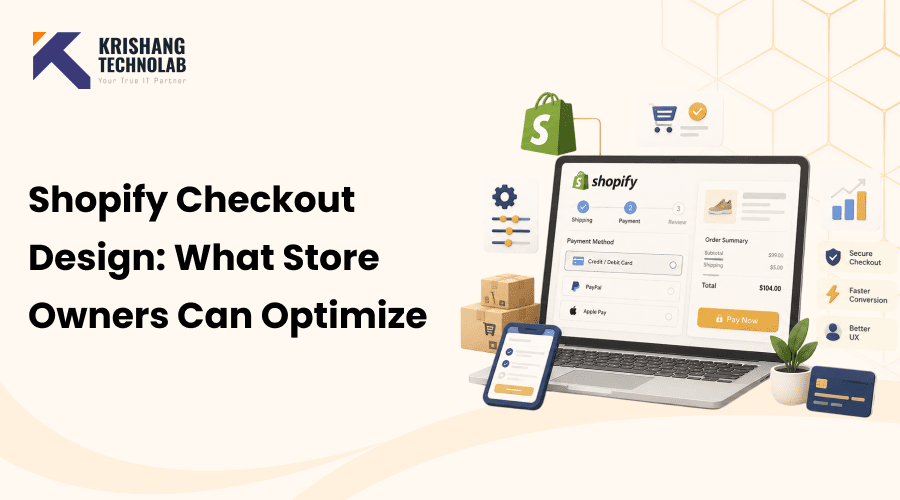
The Shopify Checkout Design is the look and feel of your checkout and how it guides buyers through checkout. This includes the layout, form fields, colours, buttons, order summary and every single message before payment.
Effective UI/UX design should be straightforward, uncluttered, and easy for users to understand. Before you start, learn the difference between UI and UX so you can plan both layers of your checkout.
Shopify runs the checkout, and you cannot edit it like a normal theme page. Instead, merchants use the Shopify checkout editor, apps, and approved extensions. Depending on your Shopify plan and what you’re trying to accomplish, you’ll have different options.
Why Shopify Checkout Design Matters
The checkout process represents the final stage of a customer’s purchase journey. So the smallest rub can cost you a sale. A confusing form or a surprise fee can undo months of ad and SEO work.
And a simple Shopify checkout process gives customers more confidence when they go to pay for their stuff. The buying process should be easy, with clear prices, simple forms, and familiar payment options. Store owners also need to watch the Shopify conversion rate optimization data to identify the weak spots.
What Can Store Owners Optimize in Shopify Checkout?
Store owners can improve eleven key areas of the Shopify checkout experience, from layout and forms to payments and shipping. Start by identifying friction points that contribute to cart abandonment.
Each improvement should be guided by checkout conversion data and tested to measure its impact. A data-driven approach to checkout UX and conversion optimization helps create a smoother path to purchase.
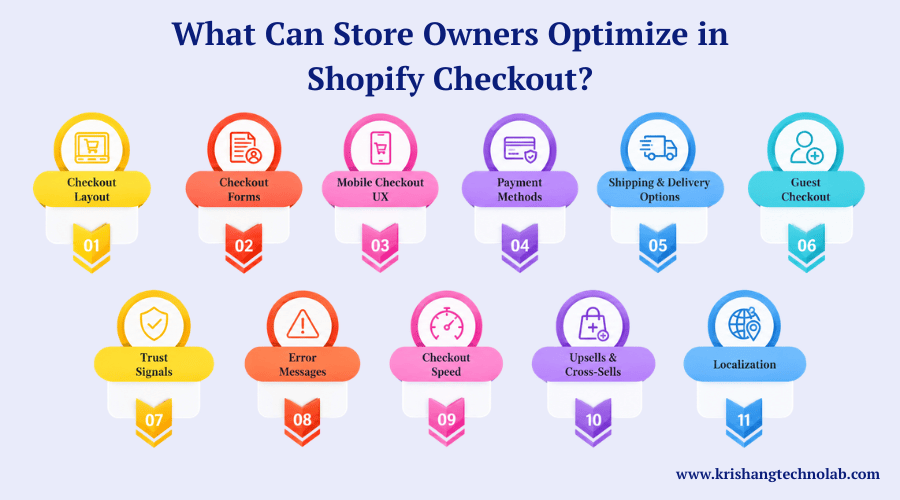
1. Checkout Layout
The clean design keeps the shopper’s focus on the checkout. A Shopify one-page checkout is easy, but more complex orders may need additional steps. Also, keep the order summary visible so that buyers can see the items, quantities, and totals.
2. Checkout Forms
Request only the information necessary to fulfill the order. For example, do not require the company name field if it is not needed. Autocomplete for addresses reduces typing effort, and validation stops errors in delivery.
3. Mobile Checkout UX
Phone users need big buttons, clear labels, and legible text. Digital wallets also eliminate most of the manual typing. Test the Shopify mobile optimization on different screen sizes before you make changes live.
4. Payment Methods
Many ways to pay for customers. Cards like Shop Pay, PayPal, Apple Pay, Google Pay, and local. Then create Shopify checkout payment methods that make sense for your audience and location.
5. Shipping & Delivery Options
People look at the price and time before they pay. So be clear about how much shipping will cost and when it will arrive. For your business, you can also pick free shipping limits, faster delivery, or local pickup.
6. Guest Checkout
Customers can place an order through guest checkout without needing to register or create an account. If you don’t actually need accounts, don’t require registration. Or you could have customers sign up after the order, removing a step for first-time buyers.
7. Trust Signals
Trust is higher when there are trust signals at the point of sale. Make the links to the return policy, security information, and contact information visible. But don’t use too many Shopify checkout trust badges at once, or customers get distracted.
8. Error Messages
Some messages are quick fixes. For example, instead of “Invalid input,” you would write “Enter a valid ZIP code.” In addition, you can also select the field in your Shopify checkout page and describe the correction.
9. Checkout Speed
A fast checkout keeps buying smooth. Shopify hosts the infrastructure, but third-party apps can still slow the experience. So clear out apps not being used and run Shopify speed optimization checks after every new integration.
10. Upsells & Cross-Sells
Additional relevant offers can add value to the order. Recommend items that are similar to items in the cart. No pop-ups to interrupt payment; Shopify checkout upsells impact on experience.
11. Localization
Localization gives overseas buyers confidence. Therefore, show prices in local currency and display taxes, duties, and shipping costs clearly. For example, UK shoppers expect pounds and familiar options like credit cards, debit cards, or PayPal.
Shopify Checkout Design Best Practices
Shopify Checkout Design best practices focus on clarity and speed. Before changing anything, find where shoppers struggle. Test each update regularly and check results. Shoppers’ habits always evolve. Review these habits with a trusted expert every quarter.
- Limit fields to the essentials.
- Knowing the total cost, including tax and shipping, up front.
- Place express payment buttons at the top.
- Keep your design consistent with your branding.
- Write clear button labels.
- Test every change with A/B experiments.
These habits combine to make buying easy. Following Shopify checkout best practices also helps you with future upgrades planning.
Shopify Checkout Design vs. Checkout Optimization
Shopify Checkout Design shapes how the checkout looks and works. Optimization measures how it performs and tests improvements. The two work together because a clear design creates a good experience, while ongoing testing reveals new chances to improve.
| Factor | Checkout Design | Checkout Optimization |
| Main focus | How the checkout looks and works | How the checkout performs |
| Goal | Create a clear, trusted buying experience | Raise conversion rate and cut cart abandonment |
| Key tasks | Layout, branding, forms, buttons, and messages | A/B testing, funnel analysis, and speed fixes |
| Tools used | Checkout editor, UI extensions, and Branding API | Shopify Analytics, testing apps, and Shopify Functions |
| Best time to use | At launch, redesign, or migration | After launch, on a regular schedule |
| Success metrics | Usability, brand consistency, and mobile experience | Conversion rate, abandonment rate, and average order value |
| Who handles it | Designer, Shopify checkout developer, or agency | Analyst, CRO specialist, or checkout services team |
| Typical cost | One-time project cost | Ongoing monthly or quarterly cost |
What Is Shopify Checkout Extensibility?
Shopify checkout extensibility is the modern way to customize checkout without editing core code. It relies on Shopify’s Checkout UI Extensions, the Branding API, and Shopify Functions. As a result, your Shopify checkout design stays ready for future platform updates.
For example, UI extensions add fields or upsell blocks. Meanwhile, Functions change discount, shipping, and payment logic. Overall, each tool solves a different problem.
Do You Need Shopify Plus to Customize Your Checkout?
Shopify Plus is an enterprise-focused plan for merchants that need advanced checkout customization, automation, integrations, and greater control than standard Shopify plans provide. Not always. Regular plan merchants can customize branding and add extra features with apps. However, with Shopify vs Shopify Plus you have more control, for example, more steps for UI extensions and more sophisticated branding.
Ultimately, your goals will determine the right plan. Compare features with your growth needs before you upgrade. Let your Shopify development services requirements inform that decision.
How to Customize Shopify Checkout
Shopify checkout customization starts in the checkout editor. There you can change supported branding and layout settings. For more functionality, add compatible apps or use Shopify checkout UI extensions.
Next, preview the checkout on different devices to confirm everything looks and works properly. Then go through the whole buying process yourself. This final check prevents costly mistakes in your Shopify Checkout Design.
When Should You Hire an Expert Shopify Developer for Shopify Checkout Customization?
If your needs are outside of the standard settings, you may need a hire Shopify developers. Professional developers handle integrations, custom rules, website migrations, and technical fixes. They also test complex changes prior to launch so your Shopify Checkout Design works on day one.
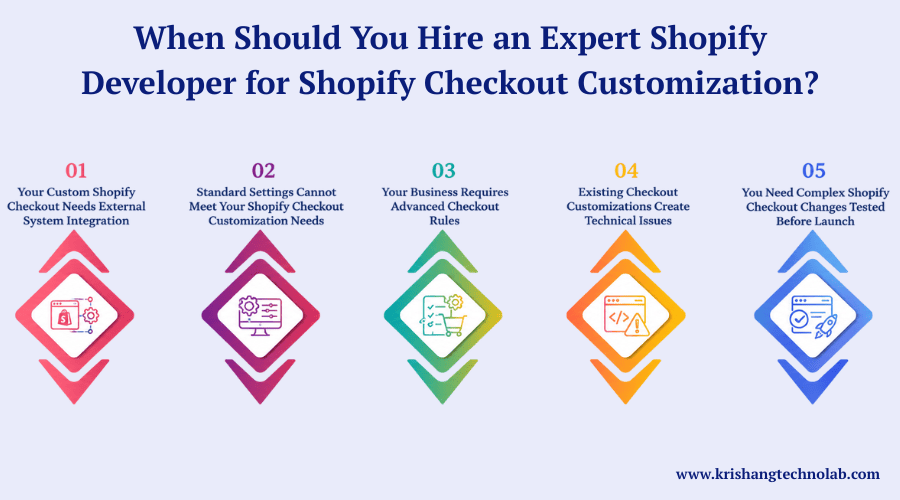
1. Your Custom Shopify Checkout Needs External System Integration
Your checkout may need to hook up to an ERP, CRM, inventory, or fulfillment system. The developer builds the connection and tests to make sure customer and order data is flowing correctly. You may need to create a custom checkout as part of a wider ecommerce development project.
2. Standard Settings Cannot Meet Your Shopify Checkout Customization Needs
Shopify’s built-in settings and apps may not cover every custom checkout requirement. Therefore, a specialist can assess your checkout functionality, identify technical limits, and recommend a practical solution.
When standard tools fall short, you may need custom Shopify development. For example, an experienced developer can design tailored checkout features that fit your workflows and goals.
3. Your Business Requires Advanced Checkout Rules
Some stores have special shipping conditions, payment requirements, or order rules. Then a developer looks at those needs and builds them using supported tools of Shopify. So, your own custom Shopify checkout will be a perfect match for your operations.
4. Existing Checkout Customizations Create Technical Issues
Existing checkout customizations can cause payment errors, missing fields, app conflicts, or unexpected behavior. In that situation, a developer can diagnose the issue and restore the checkout without disrupting essential functions.
Professional Shopify checkout development also includes testing across devices and purchase scenarios. As a result, your checkout stays responsive, reliable, and consistent, with a smooth user experience.
5. You Need Complex Shopify Checkout Changes Tested Before Launch
Technical changes need to be tested before being deployed to customers. A developer tests devices and purchase scenarios and tests that key functions still work. So you can publish with confidence.
How Much Does Shopify Checkout Design Cost?
Cost depends on the complexity of the store, the features, and the level of customization. Basic branding doesn’t take as much work. Custom functions, integrations, and extensions, in contrast, call for more development and testing.
A Shopify checkout design company provides strategy, testing, and maintenance. A freelancer is good for small jobs. Compare Shopify development portfolio, see reviews, and hire Shopify experts.
Shopify Checkout Design Cost by Project Type
Different checkout changes need different effort. Basic branding is easier than creating custom extensions or sophisticated logic. The final price also depends on features, integrations, testing needs, and your Shopify plan. Therefore, use these ranges when you plan your budget.
- Basic branding and editor setup: $300 to $1,500
- Checkout UI extension: $1,500 to $5,000
- Shopify Functions logic: $1,000 to $4,000
- Checkout audit and conversion review: $500 to $3,000
- Full custom checkout project: $5,000 to $20,000 or more
Also plan for website maintenance after launch. Ongoing updates keep every extension working.
Factors That Affect Shopify Checkout Design Pricing
Pricing of Shopify Checkout Design projects can be affected by many things. The number of features, how well they play together, and the time of creation and testing all matter. Over time, maintenance and changes that need to be done can add to the cost, so make sure you include these in your initial quote.
- Number of extensions and custom features
- Your Shopify plan
- Third-party integrations such as ERP or loyalty tools
- Design complexity and branding rules
- Testing and quality checks
- Team experience and location
Conclusion
Shopify Checkout design is critical to converting the buyers. Simple forms, mobile-friendly experience, flexible payment options and transparent shipping details can help reduce friction and make for a more seamless checkout experience with clean layout.
Extend Shopify checkout further with checkout extensibility, UI extensions, the Branding API, and Shopify Functions. These tools enable us to include useful features and still keep a consistent and easier to support checkout experience.
The best solution will depend on your store’s needs, your Shopify plan, customisation needs and budget. First, find your checkout friction, analyze your conversion data and optimize where it matters.
When the standard Shopify settings are not enough, a good Shopify checkout developer can help you with custom functionality, integrations, testing and technical improvements. You can improve your checkout process to make the purchase process more reliable and decrease undesired checkout abandonment.
Frequently Asked Questions
1. How do I customize my Shopify checkout page?
To do this, go to your Shopify admin and select Settings > Checkout. Click Customise. The editor allows you to edit banners, fonts, colors, and layout without coding. Preview on desktop and mobile, then publish when everything matches your shop front.
2. How can I add a logo to Shopify checkout?
Go to the checkout editor > Branding > Upload logo. Choose size and location, and keep the file lean and clean. By keeping the logo consistent, you let shoppers know they are still in your store. This instills confidence at the point of payment.
3. Can I change Shopify checkout colors and fonts?
Yes, in the branding panel you are able to configure accent colors, button styles, corner radius, and typography. Choose high-contrast combinations so that buttons and form fields are readable. Payment is not generic but slick, all in your brand colors.
4. What is Shopify checkout extensibility?
Instead of raw code, it’s Shopify’s modern, upgrade-safe way to customize checkout using apps, branding tools, and functions. Your customizations remain after the platform is updated, and you get access to new features like improvements to Shop Pay.
5. What replaced checkout.liquid in Shopify?
Shopify dropped the checkout. liquid in favor of extensibility at point of sale. Merchants now rebuild customizations using the checkout editor, UI extensions, and Shopify functions. Review your old edits, decide which still matter, and recreate them with supported tools before your deadline.
6. Is Shopify one page checkout better for conversions?
Shopify’s one-page checkout places contact, delivery, and payment details on one screen, reducing clicks and abandonment. It’s particularly useful for mobile buyers. Do your own A/B tests. Your audience and product will dictate the results.
7. How do I add custom fields to Shopify checkout?
Add fields like gift messages, delivery notes, or VAT numbers via a checkout UI extension or app. Fewer additions. Each new input adds friction. Collect only the information that is really necessary to fill the order.
8. How can I add upsells to Shopify checkout?
Install a checkout upsell app, or build a UI extension, to show a relevant add-on near the order summary. Keep offers low price and highly relevant to the cart. If you are making suggestions that are pushy or off-target, you can distract buyers and keep them from completing.
9. Which Shopify Plus checkout features are exclusive?
Merchants also get more steps for checkout UI extensions, more sophisticated branding controls, and ways to do custom discounts, shipping, and payment logic. Basic branding is built into the standard plans, so check the features against your growth needs before you upgrade.
10. How do I add trust badges to Shopify checkout?
Use custom blocks of the editor or a trust badge app to add security badges, guarantee icons, or payment logos. Keep them near the payment button, where doubt is highest. Use real credentials; fake badges will hurt your credibility and may be against the rules.
Found this post helpful? Don't forget to share it with your network!