
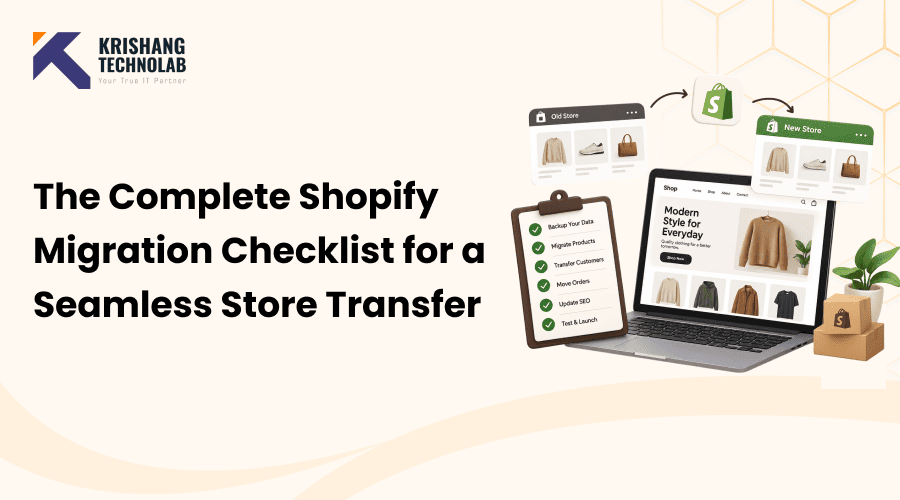
Quick Overview: This Shopify Migration Checklist walks you through every step of moving your store to Shopify before, during, and after launch. From data exports and app audits to 301 redirects, SEO preservation, and post-launch monitoring, it covers what to check so nothing breaks and no traffic gets lost.
Moving an online store to Shopify from WooCommerce, Magento, BigCommerce, or a custom-built e-commerce platform is a big project. A Shopify migration is the process of moving everything that powers your store (products, customers, orders, content, apps, and search rankings) while keeping the store running for the people who use it every day. Most of these issues are entirely preventable; they just require the right Shopify migration checklist and the right Shopify migration plan at the right time.
Proper planning matters because a Shopify migration process touches nearly every part of your business at once. Rush it, and you risk losing sales data, breaking product pages, or watching years of SEO equity disappear overnight.
Plenty can go wrong along the way: missing product variants, broken image links, orphaned customer accounts, forgotten 301 redirects, apps that stop syncing, or a sitemap that never gets resubmitted to Google.
This Shopify migration guide walks through everything you need to do before, during, and after your migration, starting with a complete checklist you can use as a quick reference, followed by a detailed breakdown of every migration step. Whether you’re looking for Shopify migration best practices, this guide is the complete Shopify migration checklist you’ll want bookmarked for 2026 and beyond.
Shopify Store Migration Checklist: What to Do Before, During, and After Migration
Here’s the full Shopify migration checklist 2026 edition. Bookmark this section and come back to it as you work through each stage of your migration process. These are the core Shopify migration steps most stores need to follow, regardless of which platform you’re moving from.
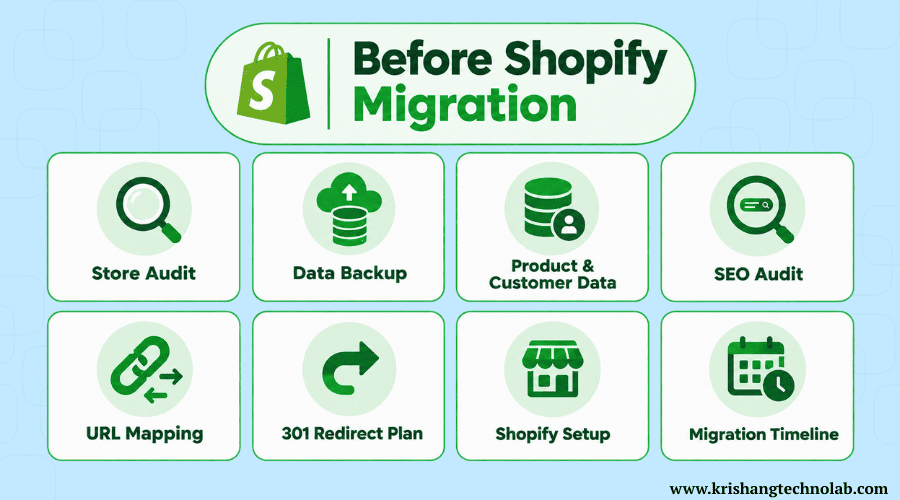
Before Migration Checklist
- Define your migration goals
- Audit your existing store
- Create a complete store backup
- Inventory all store data
- Export products and variants
- Export customer data
- Export order data
- Save pages and blog content
- Back up images and other media
- Audit installed apps and integrations
- Review your current store’s SEO
- Export title tags and meta descriptions
- Crawl existing URLs
- Identify high-performing pages
- Create a URL redirect map
- Plan 301 redirects
- Choose and configure your Shopify plan
- Set up your Shopify store
- Configure payment, shipping, and tax settings
- Plan the migration timeline
- Assign migration responsibilities
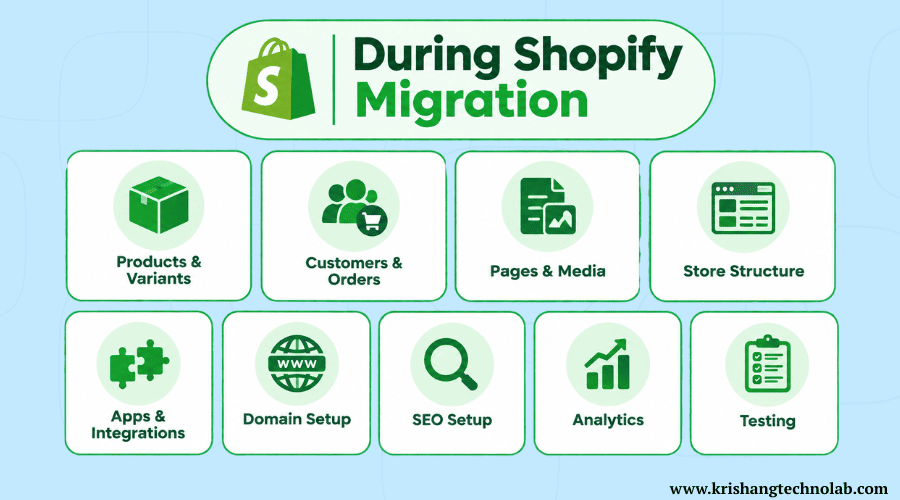
During Migration Checklist
- Migrate products and variants
- Migrate collections
- Migrate customers
- Migrate orders
- Migrate pages and blog posts
- Upload images and media
- Recreate navigation menus
- Configure store settings
- Install and configure required apps
- Connect third-party integrations
- Set up the domain
- Implement 301 redirects
- Add SEO titles and meta descriptions
- Configure analytics and tracking
- Test product pages
- Test collections and navigation
- Test search and filters
- Test cart and checkout
- Test payments and shipping
- Test forms and emails
- Test the store on mobile and desktop
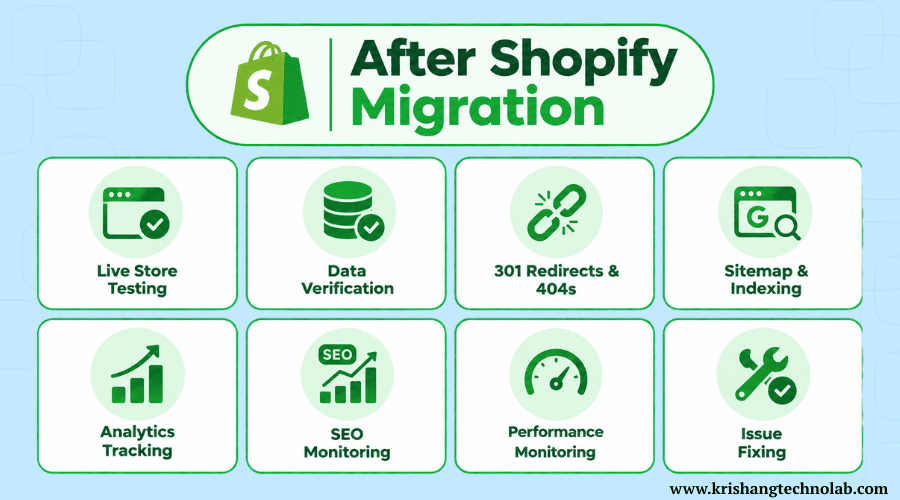
After Migration Checklist
- Complete test orders on the live store
- Verify products and inventory
- Check customer and order data
- Test all payment methods
- Verify shipping and tax calculations
- Check 301 redirects
- Find and fix 404 errors
- Submit the Shopify sitemap
- Verify Google Search Console
- Check robots.txt
- Check canonical URLs
- Verify analytics tracking
- Verify conversion tracking
- Monitor organic traffic and rankings
- Monitor sales and conversion rate
- Monitor site speed and performance
- Check broken links
- Fix post-migration issues
- Continue monitoring SEO and store performance
Before Migration: How to Prepare Your Store
Preparation is where most successful migrations are actually won or lost. If you’re wondering what things to check before migrating to Shopify look like in practice, this section is your answer. Here’s how to work through every item in the Before Migration checklist.
1. Identify Your Migration Goals
Before you touch any data, know why you are moving to Shopify in the first place. Are you leaving behind a platform that’s too expensive to maintain, too limited for the features you need, or too unreliable during high-traffic periods? Maybe you want better checkout conversion, access to Shopify’s app ecosystem, or the kind of flexibility that comes with professional Shopify development services instead of a platform that needs a developer for every small change.
Writing down specific, measurable goals faster, page load times, lower cart abandonment, and easier app integrations give you a way to judge whether the migration actually succeeded once it’s done. It also helps you decide what features and data are most important when time is running short.
2. Audit Your Existing Store
Before you can move anything, you need to know exactly what you have. This is the starting point for any e-commerce store migration to Shopify: go through your current store and catalogue every product, customer record, historical order, page, blog post, installed app, integration, and indexed URL. This audit becomes your master checklist for the entire migration; nothing should move to Shopify that wasn’t first accounted for here.
Pay special attention to anything that isn’t obvious from the admin dashboard alone: custom fields, hidden discount codes, gift card balances, subscription data, and any manual workarounds your team has built over time.
3. Make a Full Store Backup
Make a full backup of your current store before you start exporting or changing anything. This includes a full database export, theme files, uploaded media and any custom code. A full backup is your safety net if something goes wrong during the migration, and it’s also a reference copy you can compare data to later if the numbers don’t add up on the new platform.
Store this backup away from your live store location and make sure at least one other person on your team knows where it is and how to get to it.
4. Take Stock of Your Store Data
The first step to a thorough Shopify data migration is to organise your data so that nothing is missed. This is also where a product data migration checklist and a Shopify customer data migration checklist become genuinely useful, rather than just nice-to-haves:
- Product data: titles, descriptions, SKUs, prices, variants, images, inventory counts
- Customer data: accounts, contact details, order history, saved addresses, marketing consent
- Order data: past and pending orders, statuses, refunds, and fulfilment records
- Content: static pages (About, Contact, Policies) and blog posts
- Media: product images, banners, videos, and downloadable files
- SEO data: URLs, meta titles, meta descriptions, and structured data
Treating each category separately makes it much easier to verify completeness later, since you can check one data type at a time instead of trying to validate “everything” all at once.
5. Audit Your Apps and Integrations
List every app and third-party integration your current store relies on email marketing tools, reviews platforms, loyalty programmes, live chat, shipping calculators, accounting software, and analytics tools. For each one, decide whether it should be:
- Migrated: an equivalent Shopify app exists, and you’ll keep using the same provider.
- Replaced: you’ll switch to a Shopify-native alternative
- Removed: it’s no longer needed
- Reconfigured: it needs new settings or API credentials to work with Shopify
Doing this audit early prevents a common migration mistake: launching the new store and only then realising a critical integration, like your email marketing sync, never got reconnected. If your integrations are complex, it’s worth looping in a team experienced with e-commerce development before you start moving anything.
6. Audit Your SEO
Your existing store has probably accumulated SEO equity over the course of months or years, and it’s one of the most important parts of any Shopify SEO migration to preserve that equity. My review:
- URLs: the full structure of your current site
- Rankings: which keywords and pages currently rank well
- Organic traffic: your baseline traffic numbers before migration
- Metadata: existing title tags and meta descriptions
- Internal links: how pages currently link to each other
- Backlinks: external sites linking to your pages
- Indexed pages: everything Google currently has indexed
If you record this baseline data before you migrate, then you have something concrete to compare it to afterwards, so you can quickly see if traffic or rankings have fallen off and know precisely which pages need attention. A dedicated round of SEO services before launch is one of the most cost-effective ways to protect this baseline.
7. Create Your URL Redirect Map
Shopify URL migration and redirects are closely related. Shopify has its own URL structure, so most of your existing URLs will change, even if the page content remains the same. Create a spreadsheet that maps each old URL to its new Shopify URL.
Example:
oldstore.com/product/blue-shirt → newstore.com/products/blue-shirt
Do the same for every product, collection, page, and blog post, not just your top pages. Missing even a handful of redirects can mean lost traffic, broken backlinks, and a poor experience for anyone who bookmarked or shared an old link. Stores with large catalogues often hand the task off to a specialised website migration services team rather than mapping thousands of URLs by hand.
8. Prepare Your Shopify Store
Set up the technical foundation of your new store before migrating any data into it. This includes:
- Choosing the right Shopify plan for your business size and needs
- Configuring core store settings (currency, language, store details)
- Setting up payment providers
- Configuring shipping rates and zones
- Setting up tax settings for your regions
- Preparing your domain for the eventual switch
Getting this groundwork in place first means your imported data has somewhere correct to land, instead of migrating products into a store that still needs basic configuration. A properly configured Shopify store setup at this stage saves a lot of rework once data starts flowing in.
9. Develop a Migration Timeline
A good Shopify migration plan will include deadlines for each step of the process: data migration, app installation, design and theme work, testing, launch, and post-launch monitoring. Assign ownership of each task, whether that’s you, an in-house team member, or a partner who is managing your Shopify platform migration.
A realistic timeline with built-in buffer time, especially around testing, prevents the common trap of rushing a launch because a date was picked before anyone understood the real scope of work.
During Migration: How to Transfer Your Store
When you’re ready, it’s time to actually migrate your store. Here is the nitty-gritty of how to migrate a website to Shopify or if you are migrating your e-commerce store to Shopify from another e-commerce platform step by step. Then test along the way, rather than waiting until it is all “done.” Take each of these stages one at a time.
1. Transfer Products & Variants
Transfer product title, description, SKU, price, inventory count, images, and variants (size, color, material, etc.) for all products. Double-check that variant combinations map correctly; this is one of the most common places data gets scrambled, especially for products with multiple variant options. For a deeper look at building out product pages the right way, see this guide to custom Shopify store development.
2. Move Customers and Orders
Migrate customer accounts and contact info, saved addresses, and marketing preferences. You will need to import historical order data so your customers can still see their past purchases and your team has accurate records for accounting, returns, and customer service.
3. Migrate Pages, Blogs, and Media
Bring over all your static content and media:
- About pages
- Contact pages
- Policy pages
- Blog posts
- Images
- Videos
- Downloads
Rich text content, embedded images, and links often need adjusting when moving between platforms, so check formatting carefully.
4. Recreate Your Store Structure
Rebuild your collections, navigation menus, filters, search configuration, and overall product organization. This is also a good opportunity to simplify or improve your store’s structure if the old one has grown messy over time; just be careful not to change so much that it breaks your redirect map or confuses returning customers.
5. Configure Apps and Integrations
Reconnect the critical services that were identified in your previous app audit: email marketing, reviews, shipping calculators, CRM, accounting software, and analytics tools. Before proceeding to the subsequent connection, verify that data is flowing correctly by testing each one individually. Coordination with yourdigital marketing services provider is essential to prevent a tracking gap immediately following launch if email and campaign tools are included.
6. Set Up Your Domain
Domain connection, DNS record changes, and SSL certificate configuration. Be sure to schedule this step around your launch window, as DNS changes can take time to propagate and you don’t want your store to be unreachable during the transition.
7. Implement 301 Redirects
After you create a redirect map, set up 301 redirects for any changed URLs. This is a critical part of a Shopify SEO migration. 301 redirects tell search engines and browsers that a page has permanently moved, so you don’t lose link equity or user experience. If you’re weighing Shopify against other platforms as part of a bigger switch, this CMS migration guide covers the same redirect principles at a platform level.
8. Configure SEO
Rebuild your on-page SEO as part of your broader Shopify site migration, working from a dedicated Shopify migration SEO checklist so nothing gets overlooked, using the metadata you exported earlier:
- SEO titles
- Meta descriptions
- URLs
- Canonical tags
- Structured data
- Internal linking
9. Configure Analytics and Tracking
Install Google Analytics, Google Search Console, and ad pixels (Meta, Google Ads, etc.) and track e-commerce conversions on the new store. Before you launch, make sure things like purchases, add-to-cart events, and page views are firing correctly.
10. Test Everything Before Launch
Testing deserves its own dedicated pass across every part of the store:
- Navigation
- Product pages
- Search
- Cart
- Checkout
- Payments
- Shipping
- Forms
- Emails
- Mobile
- Desktop
Don’t treat testing as a single checkbox walk-through of each category deliberately, ideally with more than one person and on multiple devices and browsers.
After Migration: What to Check After Your Shopify Store Goes Live
Launch day is not the finish line, but the beginning of a period in which things are closely monitored and problems are easiest to find and fix.
1. Complete Test Orders
Go through the whole buying process yourself as a real customer would. Browse. Add to cart. Enter discount code if applicable. Check out. Complete the payment. This is the single best way to catch issues that testing environments sometimes miss.
2. Verify Data
Check that all of your products, variants, inventory counts, customers, orders, prices, images and collections match up with your pre-migration records.
3. Check for Redirects and 404 Errors
Crawl your new store to find broken URLs and redirects that don’t work correctly. Quickly fix these, every 404 is a potential lost customer or lost ranking.
4. Submit Your Site Map
Submit your new Shopify sitemap to Google Search Console (and Bing Webmaster Tools) to ensure your new URLs are found and indexed as quickly as possible.
5. Verify SEO and Indexing
Check the following:
- Google Search Console for crawl errors
- Indexed pages versus your expected page count
- Canonical URLs
- Robots.txt configuration
- Sitemap accessibility
- Redirect functionality
6. Verify Analytics and Conversions
Make sure your analytics platform is correctly tracking traffic, purchases, revenue and other key events. Compare early numbers to your pre-migration baseline to identify potential gaps in tracking.
7. Monitor Performance
Keep a close eye on the store in the days and weeks after launch; you can see how this plays out in real launches in these Shopify migration case studies:
- Organic traffic
- Search rankings
- Revenue
- Conversion rate
- 404 errors
- Checkout abandonment
- Site speed
8. Fix Post-Migration Issues
Prioritise by impact. If it has an impact on sales, customer accounts, checkout or core SEO then that should be fixed first, followed by smaller cosmetic or content issues.
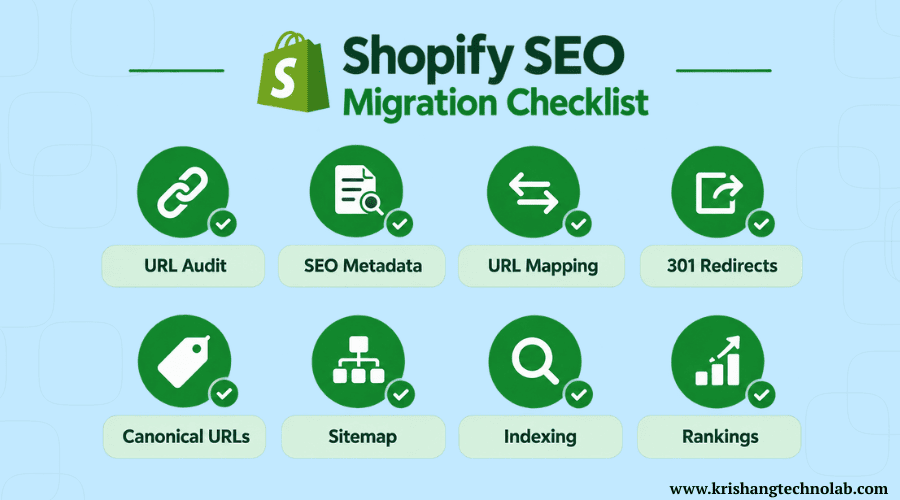
Common Shopify Migration Mistakes to Avoid
Following Shopify migration best practices means learning from the mistakes that trip up most stores. Here are the most common Shopify migration mistakes to avoid:
- Migrating without a backup
- Forgetting 301 redirects
- Changing too many URLs at once
- Losing SEO metadata in the transfer
- Forgetting images or media files
- Not migrating important customer or order data
- Installing unnecessary apps that slow down the store
- Not testing checkout thoroughly
- Forgetting to set up analytics before launch
- Launching without crawl or indexing checks
- Not monitoring SEO after migration
For platform-specific pitfalls, it’s worth reading up on your starting point, whether that’s this Magento to Shopify migration guide or, for stores considering the reverse move, Shopify to WooCommerce migration services.
Why Work With Krishang Technolab for Your Shopify Migration
Reading a checklist is one thing; executing it cleanly in a live store with real customers and revenue on the line is another. Krishang Technolab is an AI-driven software and app development company with 8+ years of experience and 1000+ projects delivered for more than 250 clients across the US, UK, Canada, Europe, and Australia.
Our Shopify Expert handles the full scope of a Shopify migration in-house: product, customer, and order data transfer; app and integration reconfiguration; URL redirect mapping; SEO and analytics setup; and thorough pre- and post-launch testing. We’ve supported migrations onto Shopify from Magento, WooCommerce, BigCommerce, and custom-built platforms, as well as Shopify Plus replatforming projects for larger catalogs and multi-market stores.
Beyond Shopify, our broader ecommerce development and digital marketing services teams work alongside the migration team, so integrations, SEO, and analytics don’t fall through the cracks between departments; one team owns the whole transition.
If you’d rather have specialists run this checklist for you than tackle it solo, contact us for a scoped plan and timeline specific to your store.
Shopify Migration Checklist: Final Quick Reference
Before: Define goals → Audit store → Backup everything → Inventory data → Export products, customers, orders, content, and media → Audit apps → Audit SEO → Build redirect map → Set up Shopify → Plan timeline
During: Migrate products, customers, orders, and content → Rebuild store structure → Reconnect apps → Set up domain → Implement redirects → Configure SEO and analytics → Test everything
After: Test orders → Verify data → Check redirects and 404s → Submit sitemap → Verify SEO and analytics → Monitor performance → Fix issues as they arise
Found this post helpful? Don't forget to share it with your network!